
← a microphone for singing, at home or on stage
Is the HyperX QuadCast Good for Singing? (Your Gaming Mic, the Logo Side, and the Gain Dial)
The HyperX QuadCast is fine for singing at home or on stream. Sing into the side with the logo, set it to cardioid, turn the gain down, and quiet the room.
 Gus Harmon · Updated August 22, 2026 · how I decide
If you buy through my links the site earns a little. It's never why I pick things.
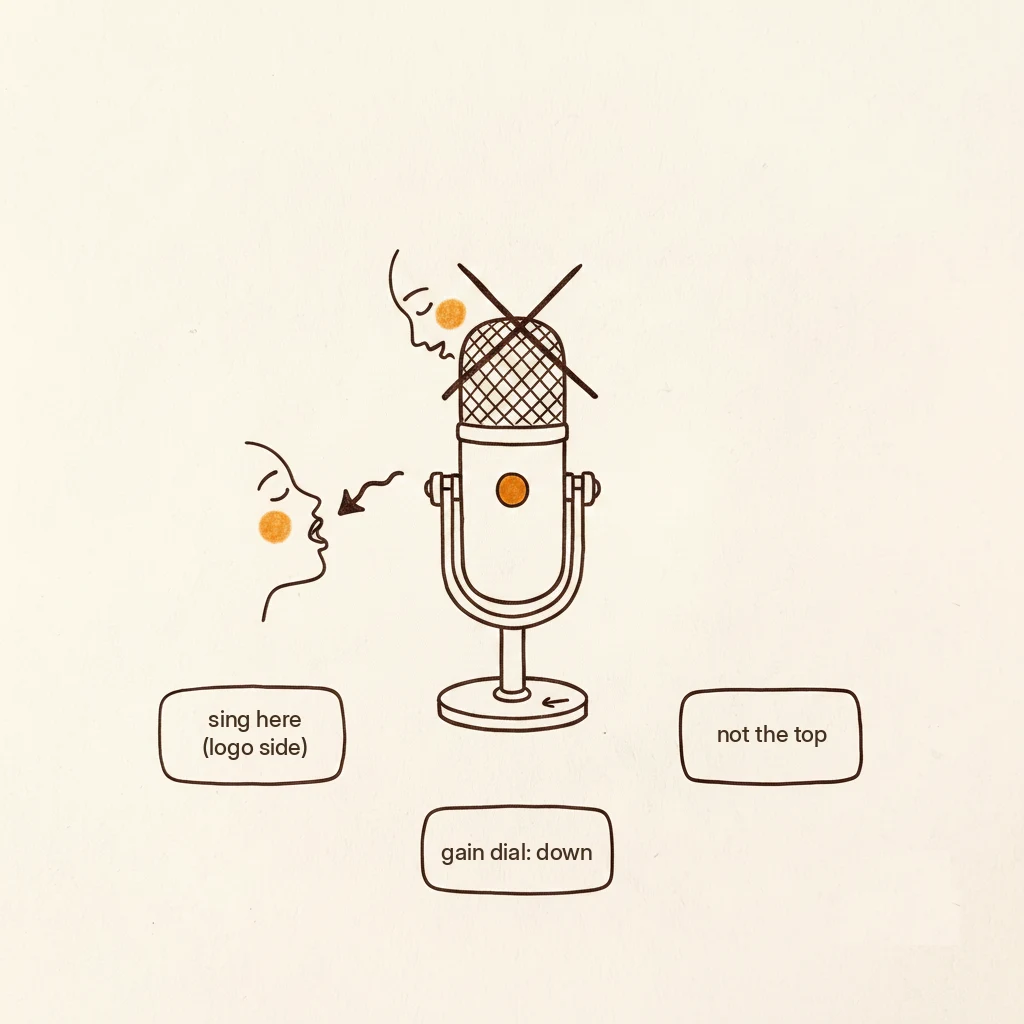
Yes. For singing at home, on stream, or for a demo, the HyperX QuadCast is fine. It’s a condenser, same class as a Blue Yeti. Sing into the side with the logo, not the top. Set the pattern to cardioid. Turn the gain down until loud notes stop clipping. Quiet the room. Headphones go into the mic’s own jack.
You already own the QuadCast. It came for Discord, or Twitch, or the pandemic video-call wave, and now somebody (a friend, a stream viewer, you in the shower) said “you can actually sing.” And you want to know if you need a “real” mic for that, or if the thing already on your desk can do it.
It can. You don’t need a new mic. You need to set the one you have up correctly for a voice that’s actually trying to sound good, not just be heard on a call. There are four free fixes, and they’re the same ones that work on any USB condenser.
Fix 1: Sing into the logo side, not the top
The QuadCast has three little condenser capsules inside it, arranged so they pick up sound from the side. The HyperX logo marks the front. Sing into that side, the way you’d talk across a table, not down into the top.
If you’ve been singing into the top, that’s why you sounded distant and roomy. The mic was hearing you off-axis, the equivalent of talking into someone’s ear from behind their head.
One note: at least one review (SoundGuys) calls it top-address. The three-capsule layout and the way stereo mode works (left and right capsules pick up left and right, which only makes sense side-on) say otherwise. Here’s how to settle it in ten seconds: plug headphones into the mic’s 3.5 mm jack, sing a line into the top, sing the same line into the logo side, and pick the one that sounds fuller. That’s the front.
Fix 2: Set it to cardioid
The QuadCast has a dial with four pickup pattern symbols on it. Turn it to the heart shape (cardioid). That tells the mic to listen to what’s in front of it and mostly ignore the sides and back, so it hears you and not the room.
The QuadCast also has a stereo mode. That one’s useful for a very specific thing: recording guitar and voice at the same time in one take, where it picks up left and right separately. For straight singing, leave it on cardioid.
Fix 3: Gain down, get close
The gain dial is on the bottom of the mic. Turn it down. You want the loudest note you sing to land just under clipping (that harsh digital crackle). Start low, sing loud, and nudge it up only if you’re too quiet. Closer is better, roughly a hand-span from your mouth, about six inches. A boom arm kit (about $20, and it comes with a pop filter) gets it up to face level, but a stack of books works tonight for free.
The QuadCast’s condenser capsules can boost harsh S and T sounds (sibilance, the audio word for it). If your recordings hiss on every “s,” the pop filter from that kit in front of the mic softens it. Or try angling the mic slightly off-center from your mouth, so you’re singing just past the front instead of straight into it.
Fix 4: Quiet the room (the condenser truth)
The QuadCast is a condenser (a sensitive mic that picks up everything, not just your voice). That sensitivity is what makes it sound clear when things are right, and exactly what makes it sound terrible when the room is noisy.
A condenser hears the PC fan under the desk, the chair squeaking, the dishwasher two rooms over. For singing, that gaming desk is actually the enemy: the tower is right there and the fans are blowing straight at the mic.
The room rules for any condenser: quiet room, soft surfaces nearby (a closet of clothes is a free vocal booth), fan pointed away or off, door closed. You can’t EQ your house out of the recording after. Fix it before you sing.
Can you hear yourself while you sing?
Plug headphones into the 3.5 mm jack on the mic itself, not into your PC’s headphone port. The QuadCast passes your voice through with almost no delay, so you hear yourself in real time while you sing. Monitoring through the PC adds a lag, and singing against a late echo of yourself is hard.
The QuadCast doesn’t have a physical monitoring volume knob on the mic itself. The monitoring level is controlled through software (HyperX NGENUITY on PC).
The honest ceiling
The QuadCast covers a lot: singing on stream, karaoke nights with your chat, YouTube covers, voice lessons over Zoom, rough demos to send a bandmate. For any of those, you’re set.
Where it stops: if you’re recording a single you’d actually put on Spotify, you’ll hear the difference between this and an XLR mic through a dedicated interface. That step up is something like an Audio-Technica AT2020 and a Focusrite Scarlett Solo, roughly $260 together. That’s the next rung, not the first one. The QuadCast is a fine place to find out if you even want that rung. I hold every mic on this site to the same cold test, the one you own included.
Why four patterns from three capsules: the QuadCast has three 14 mm electret condenser capsules. By mixing their signals in different combinations (adding them, subtracting them, using one or two), the mic creates four polar patterns (pickup shapes): cardioid, stereo, omnidirectional, and bidirectional. One set of capsules, four ways to listen.
A couple of small things
The QuadCast’s tap-to-mute on the top is handy for streaming (tap it between songs). The light tells you when it’s live. On the QuadCast S, the lighting is adjustable in HyperX’s NGENUITY software if the glow bothers you in a dark room.
One quirk: at least one reviewer found the QuadCast kept their PC from going to sleep while plugged in. If your computer won’t sleep at night, unplug the mic or check your USB power settings.
What I’d actually do
Logo toward your face, dial to the heart, gain down till it stops clipping, PC fan pointed the other way. Then sing. It’s a Yeti in a gaming jacket, and the Yeti is fine for this. If your recordings still sound muffled or distant, it’s the room or the angle, not the mic. If you want to record yourself properly at home, start here: the mic you own, set up right.
If you buy through my links the site earns a little coffee money. Doesn’t change the price, doesn’t change my answer.
If you’re figuring this out, you’re probably also wondering:
- Is the Blue Yeti Good for Singing? (same three fixes, different mic)
- USB Microphone for Singing (the whole USB class, compared)
- Condenser Microphone for Singing (why the room matters more than the mic)
- Why Does My Recording Sound Muffled? (the failure post, with fixes)
- Record Yourself Singing at Home (the full setup, start to finish)
Gus Harmon
Gus spent three decades running sound wherever somebody needed it: bar bands, weddings, school shows, and twelve years of Sunday mornings. He can't sing a note. He can make sure you're heard. Now he writes so normal people can buy the right thing the first time.